

On iPhone, there are straightforward methods to delete your contacts one by one. However, this is time-consuming when you want to batch delete all your contacts. There are two things required if you want to delete all contacts at once:
- Your contacts should be synced to iCloud.
- You need to log in to iCloud from a computer (either Mac or Windows).
This guide will show you how to mass delete your contacts on your iPhone and a method to “hide” them if you don’t want them deleted.
Note: If you delete all your contacts on iCloud, they’ll also be deleted from all your Apple devices.
Deleting All Contacts on iPhone Using iCloud
This method won’t work on your iPhone since there’s no way to select all contacts. Instead, you have to use a Mac or Windows computer.
-
Go to icloud.com and log in using your Apple ID.

Sign in with your Apple ID. -
Click on Contacts.
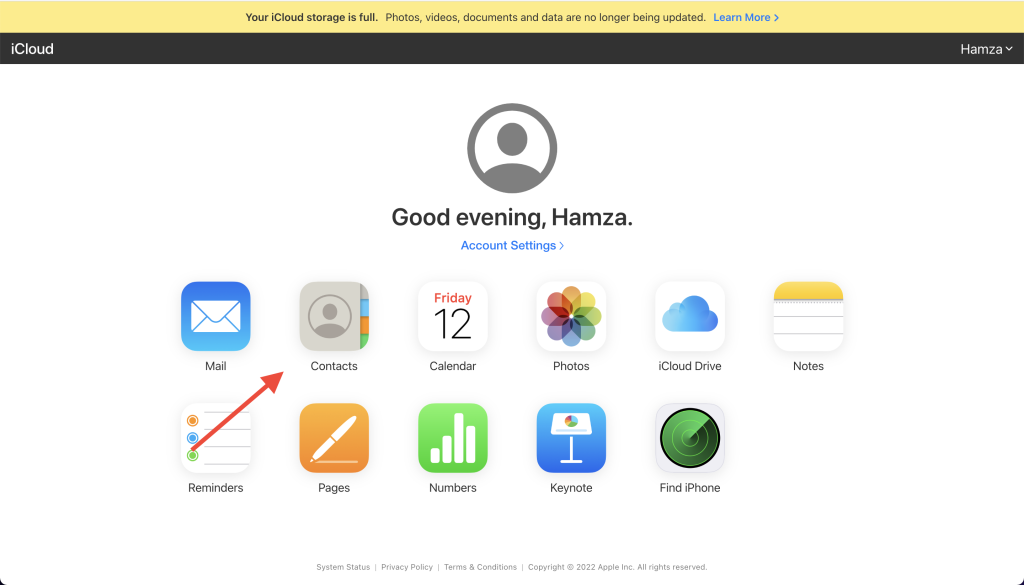
Click on Contacts. -
To select all contacts, press the Command + A keys together (or Ctrl + A if you’re on Windows).

Select all contacts by pressing Cmd + A. -
Click on the Settings icon on the bottom-left.

Click on the settings icon. -
Click on Delete.

Click on Delete. - A confirmation box will pop up. Click on Delete again.

Click on Delete again.
Hiding All Contacts Directly on Your iPhone
This method requires you to have your contacts synced to an email account. You can use this method to hide all of your contacts at once instead of deleting them. No one will be able to see your contacts, and you can unhide them whenever you want.
-
On your iPhone, tap Phone.

Tap Phone. -
Tap Groups in the upper-left corner.

Tap Groups. -
Uncheck the accounts listed and tap Done.

Tap Done. -
All of your contacts will now be hidden.
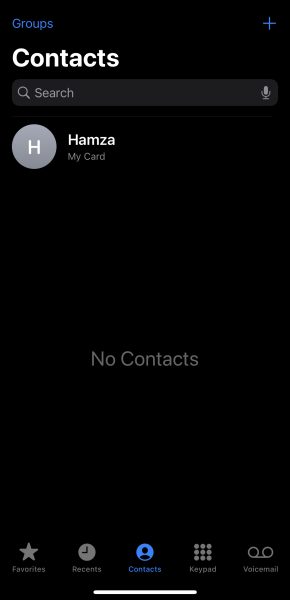
All your contacts will now be hidden. To see your contacts again, go back to “Groups” and check all the email accounts.